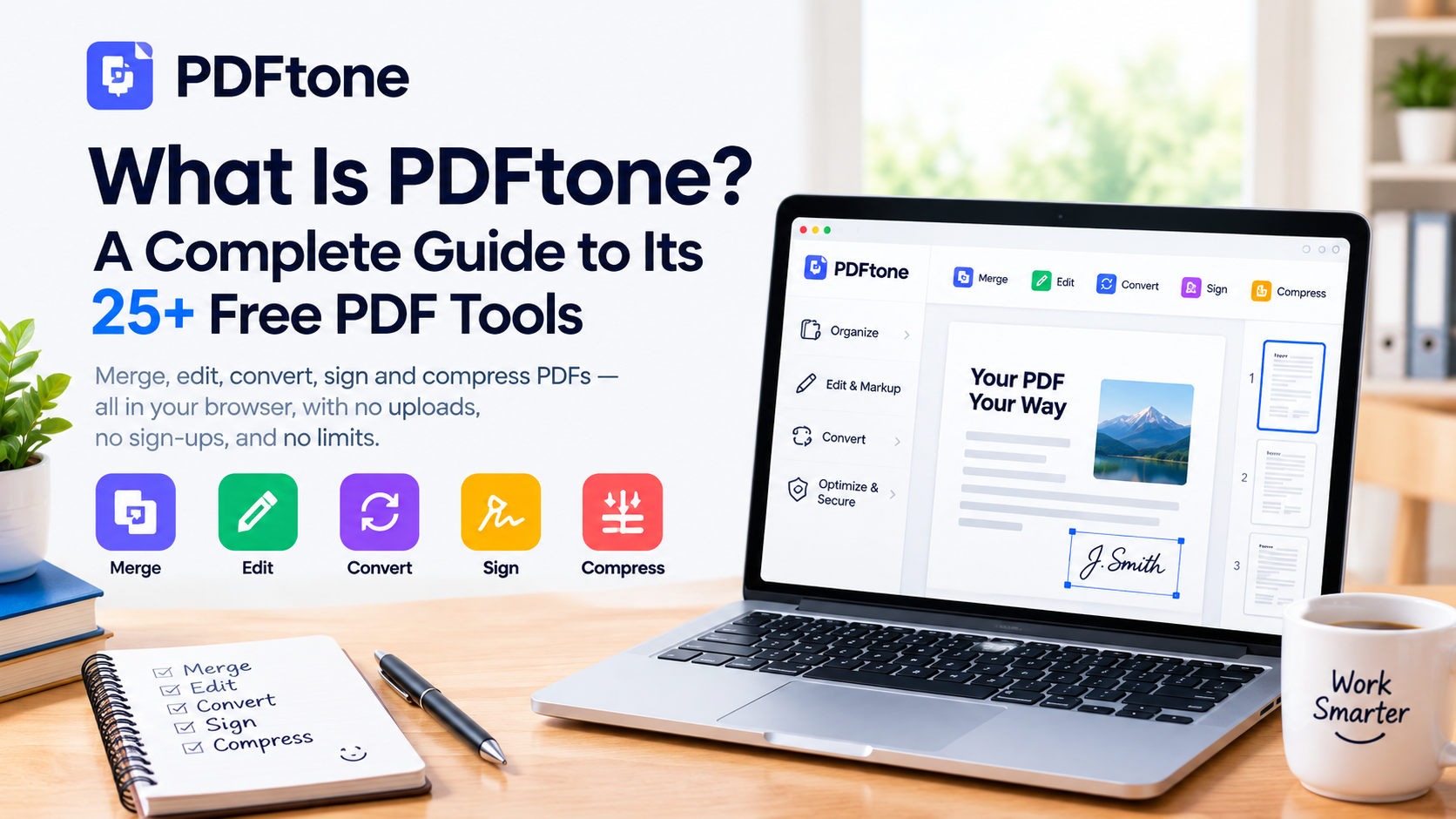
If you work with PDF files on a regular basis — whether for office work, university assignments, client contracts, or freelancing — you already know how frustrating it can be to find a decent online PDF tool. Most websites make you upload your file to a server, wait while it gets processed somewhere out in the cloud, and then send back a download link once it's done. That process puts your privacy at risk, slows you down, and often comes wrapped in a maze of ads, forced sign-ups, or paywalled features you didn't ask for.
This is where PDFtone takes a genuinely different approach. It's an online PDF workspace that runs entirely inside your browser — meaning your file never actually leaves your device, let alone gets sent to a server. In this blog, we'll break down PDFtone in full detail: how it actually works under the hood, every one of its 25+ tools, its pricing plans, what sets it apart from other PDF websites, and the concrete advantages you get by choosing it over a traditional cloud-based PDF editor.
How Does PDFtone Work?
PDFtone's biggest selling point is that it relies on local processing. When you drop a PDF, Word file, Excel sheet, or image onto the site, that file loads directly into your browser's memory. Whether you're merging, compressing, annotating, or signing — all of that work happens on your own device's CPU, not on some remote server sitting halfway across the world.
That means:
Your file is never uploaded anywhere
Once you close the tab, nothing is stored anywhere
Even confidential or sensitive documents can be processed without worry
Even on a slow internet connection, processing stays fast since there's no server queue to wait on
You're not depending on someone else's server capacity or uptime to get your work done
The workflow itself is refreshingly simple — everything happens in three steps:
Drop your files in: PDFs, images, Word documents, and spreadsheets all land in the same workspace, ready to be arranged.
Arrange, mark up, and sign: reorder or rotate pages, add text, shapes, watermarks, or drop in your signature exactly where you need it.
Export it: download the result in whatever format you need: PDF, Word document, spreadsheet, or image.
No account creation, no waiting for an upload progress bar, no "your file is in the queue" message. That makes PDFtone especially handy for people who are in a hurry, working on something time-sensitive, or just tired of signing up for yet another account every time they need a quick edit.
Every PDFtone Tool — A Short Rundown
Now let's get into the part that actually matters — the 25+ tools available on PDFtone. We'll break them down into four categories: Organize, Edit & Markup, Convert, and Optimize & Secure.
1. Organize Tools
These are for anyone who needs to rearrange, combine, or split their PDF files.
Merge PDF: Combines multiple PDFs, images, Word docs, and spreadsheets into a single PDF.
Organize Pages: Drag pages into the right order, rotate them, or remove the ones you don't need.
Split PDF: Breaks a large PDF into smaller files by page range.
Rotate PDF: Rotate a single page or the entire document.
Crop PDF: Trims the margins or unwanted edges from a page.
Add Page Numbers: Automatically adds page numbers to every page.
Together, these six tools cover almost every "structural" thing you'd ever need to do to a document — whether it's tidying up a scanned book, prepping a report for print, or splitting a huge contract into individual sections for different departments.
2. Edit & Markup Tools
This section is for anyone who needs to add or edit content directly on a PDF.
Add Text & Annotations: Type directly onto any page and adjust size, color, and position.
Shapes & Arrows: Draw boxes, circles, lines, and arrows to highlight or explain something on the page.
Sign PDF: Draw your signature or type it in a handwriting style, then place it on the page.
Edit PDF: Add, edit, or remove content directly on any page — true direct editing.
Watermark PDF: Stamps text or a logo across every page.
Redact PDF: Permanently blacks out sensitive text or images before you share a file.
This category is particularly useful for teams reviewing documents together, teachers marking up assignments, or anyone who needs to sign a contract without printing, signing by hand, and scanning it back in.
3. Convert Tools
This is PDFtone's biggest and most useful section, where you can convert files between formats without losing formatting.
PDF to Word: Converts a PDF into an editable .docx, keeping headings and paragraphs intact.
PDF to Excel: Pulls tables and text out of a PDF and lays them out as rows and columns.
Export Pages as Images: Saves individual pages, or the whole document, as image files (PNG, JPG).
JPG to PDF: Turns one or more images into a single PDF document.
PDF to JPG: Saves each page as its own JPG image.
Word to PDF: Converts a Word document into a PDF while preserving formatting.
Excel to PDF: Converts a spreadsheet into a print-ready PDF.
PowerPoint to PDF: Converts a PowerPoint presentation into a PDF.
PDF to PowerPoint: Turns each page of a PDF into an editable PowerPoint slide.
PDF to PDF/A: Converts a PDF into the PDF/A format for long-term archiving.
If you regularly move content between Microsoft Office and PDF format — say, exporting a report as a PDF for a client, or pulling a table out of an old PDF back into Excel — this section alone can replace three or four separate apps.
4. Optimize & Secure Tools
This category is for anyone who needs to secure or optimize their files before sharing them.
Compress PDF: Shrinks large or image-heavy PDFs so they're easier to email or share.
Extract Text: Pulls all readable text out of a PDF into a plain text file.
Protect PDF: Adds a password so only authorized people can open the file.
Unlock PDF: Removes a password from a PDF you already have the password for.
Repair PDF: Attempts to fix a PDF that won't open properly.
Scan to PDF (OCR): Turns scanned pages into a searchable PDF using OCR.
Compare PDF: Shows what's changed between two versions of a PDF.
Fill PDF Forms: Opens a PDF form, lets you fill in the fields, and download the completed file.
Getting this wide a range of tools on a single platform is genuinely convenient — otherwise people usually have to bounce between four or five different websites for a single task, each with its own ads, upload limits, and privacy policy to worry about.
Key Advantages of Using PDFtone
Beyond just having a lot of tools in one place, there are some concrete advantages that make PDFtone stand out from the typical PDF website.
Your files never leave your device. This is the single biggest advantage. Every merge, edit, and export happens inside your browser's memory. There's no upload step, so there's no window in which your file could be intercepted, logged, or stored on someone else's server.
No account required to get started. You can open the tool and start working immediately. Free tools are available with no sign-up at all — an account is only needed later on if you want optional team features.
Works with multiple file types in one workspace. Instead of hunting for a separate converter for every format, PDFtone lets you bring in PDFs, Word documents (.docx), spreadsheets (.xlsx, .xls, .csv), and images (PNG, JPG, WEBP, GIF, BMP) into the same place.
No arbitrary file-size limits. Since PDFtone doesn't rely on server storage, it doesn't impose its own file-size or page-count limits. The only real ceiling is your device's available memory, which is typically more than enough for everyday documents.
Works offline once loaded. Because processing happens locally rather than on a server, most tools continue working even without an internet connection, once the page has initially loaded.
Genuinely free core functionality. The core tools — merge, edit, sign, convert — don't cost the company anything to run, since your own browser does the processing. That's reflected in the pricing: the free tier isn't a crippled trial, it's the same tools with a daily usage cap.
Faster, queue-free processing. Traditional cloud tools often make you wait behind other users' uploads. Since PDFtone processes everything locally, there's no server queue — your file is processed the moment you act on it.
Reduced compliance risk for sensitive documents. For anyone handling contracts, medical records, financial statements, or ID documents, not having the file touch a third-party server meaningfully reduces the risk of a data leak or a compliance violation.
PDFtone Pricing — Is Everything Really Free?
PDFtone has four plans, and the notable thing is that its core offering is free, since all the processing happens in your own browser — meaning the company doesn't have to pay for server costs to keep the lights on.
Free Plan ($0) – 2 files per day, 1 device, all core tools available, supported by ads.
Plus Plan ($1.99/month) – 10 files per day, 2 devices, no ads.
Pro Plan ($4.99/month) – 50 files per day, 3 devices, no ads, and faster processing. (Most popular plan)
Unlimited Plan ($9.99/month) – Unlimited files, 10 devices, priority support.
All paid plans are billed monthly in USD and can be cancelled anytime, with daily limits resetting every 24 hours. There's also a team option starting from $2.99/seat for anyone who needs to roll this out across a small office. Currently, there's a promo code, "PDF60," active on the site that unlocks a discount on the Pro plan — worth checking out if you're a regular user who's outgrown the free tier's daily limit.
What Makes PDFtone Different From Other PDF Websites?
There's no shortage of PDF tool websites out there, but PDFtone's biggest differentiator is its local-first approach. Traditional cloud-based PDF editors upload your file to a remote server, which exposes it to potential third-party leaks and server-side logs, can slow things down with upload and server queues, and can raise data compliance concerns for regulated industries.
PDFtone flips that model entirely by relying on local device processing:
0 KB sent to any server
100% offline-ready processing
Instant results, with no queue to wait on
This is especially important for anyone dealing with sensitive files — legal documents, financial records, HR paperwork, or personal ID scans — where even a well-intentioned cloud provider represents an extra point of exposure.
Who Is PDFtone Best For?
PDFtone is a great fit for people who:
Work with PDF files regularly and don't want to keep signing up for new accounts
Care about the privacy of their files and would rather not upload anything, ever
Want to handle multiple tasks — merging, editing, converting, signing — in one place instead of five different tabs
Want to get basic work done for free, with the option to upgrade only once their needs actually grow
Occasionally need to work offline or on an unreliable connection
Students preparing assignments, freelancers sending contracts and invoices, small business owners handling paperwork, and office employees converting reports between formats can all get real, everyday use out of this platform.
Final Thoughts
PDFtone is a simple, fast, and privacy-focused PDF tool that solves today's document headaches in a genuinely practical way. Its biggest strength is that your files never touch a server, which sets it apart from — and makes it noticeably safer than — most traditional cloud-based tools. Add in 25+ tools in one place, no forced account creation, no arbitrary file-size ceilings, and a free plan that's actually usable, and you get a tool that's hard to beat for everyday PDF work.
If you haven't tried it yet, head over to PDFtone and see for yourself how easy PDF editing can be right inside your own browser.